How to Configure Your Email on Android & iOS Using the Gmail App (IMAP)
The number 1 .al domain registrar.

In this guide, you will learn how to configure a professional email address (e.g., support@host.al) on an Android or iOS phone using the Gmail application via the IMAP protocol.
This setup allows you to manage your business email directly from the Gmail app on your phone.
Step 1: Open the Gmail App and Add a New Account
- Open the Gmail app on your phone.
- Tap Add account.
- You will see several email type options.
4. Select Other (IMAP)
(Kjo përdoret për email-e që nuk janë Google, Outlook, Yahoo, etj.)
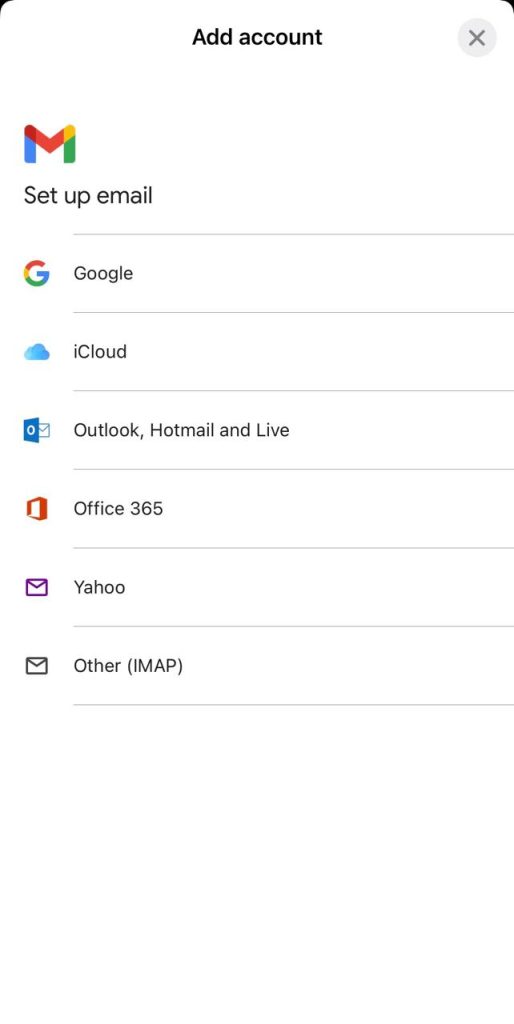
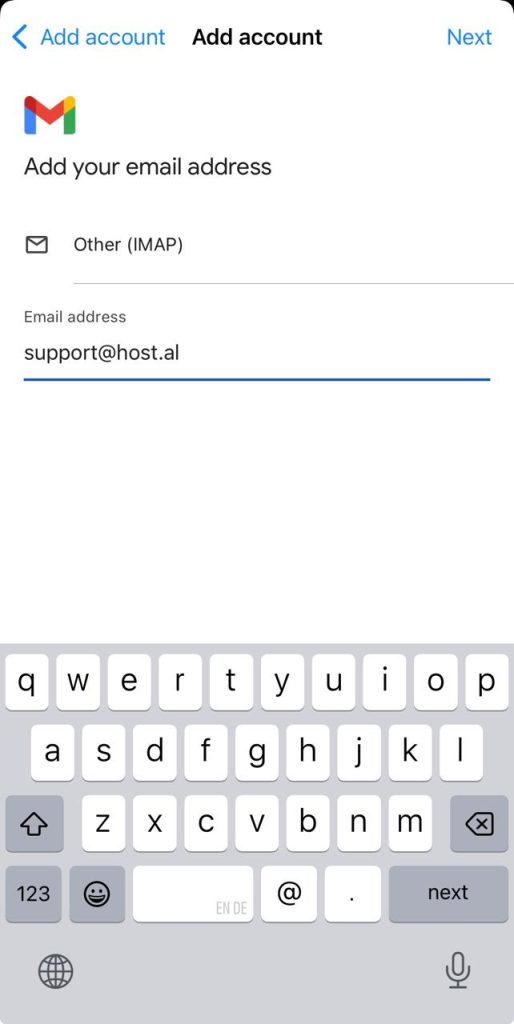
Step 2: Enter Your Email Address
In the field that appears:
- Enter your full email address
Example:support@host.al
Then tap Next.
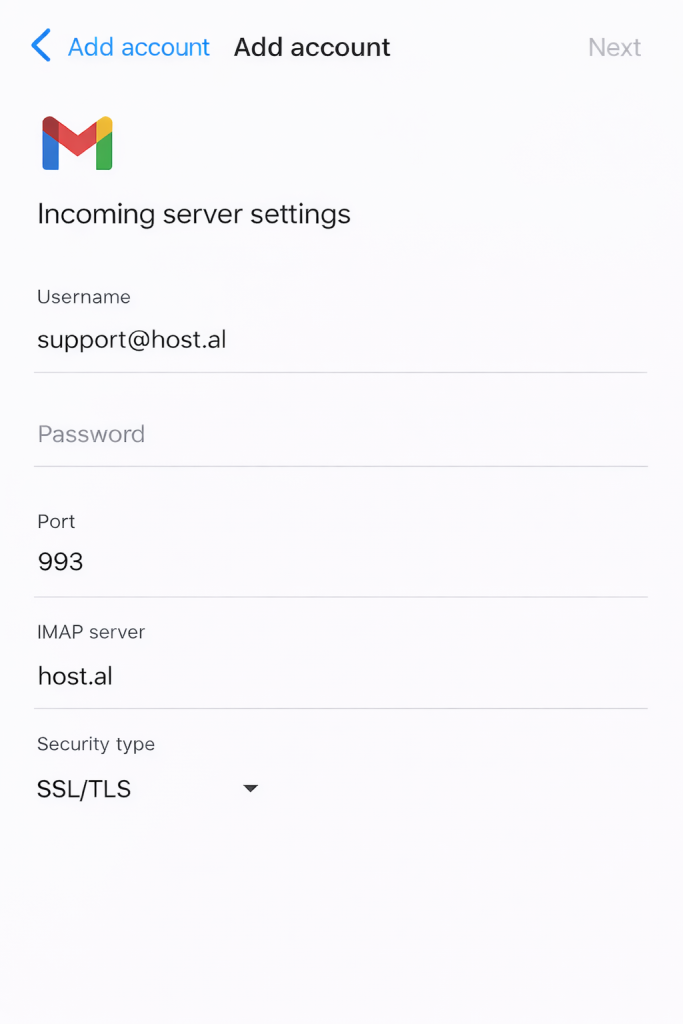
Step 3: Configure the Incoming Mail Server (IMAP Settings)
In this step, you need to enter the IMAP server details.
Fill in the fields as follows:
- Username:
support@host.al ( your email address ) - Password:
(your email password) - IMAP Server:
host.al (your domain name) - Port:
993 - Security Type:
SSL/TLS
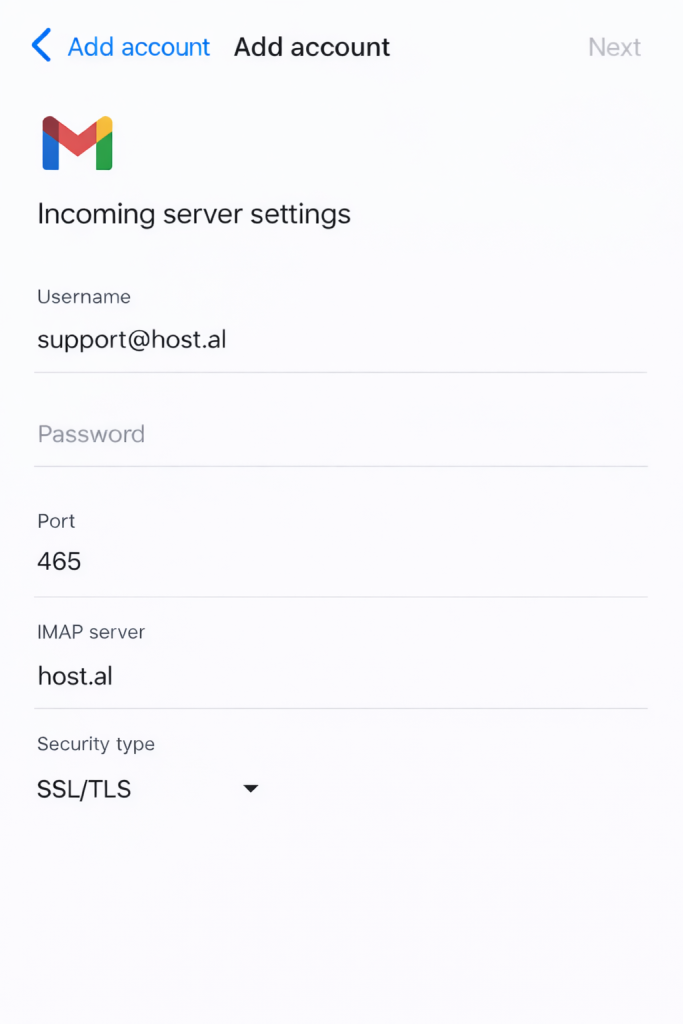
Important Note:
Port 993 is used for secure IMAP (SSL/TLS).
Do NOT use port 465 in this step, as port 465 is used for SMTP (sending email), not for IMAP.
After filling in all fields, tap Next.
Step 4: Configure the Outgoing Mail Server (SMTP)
In the next step, you will configure the outgoing server settings.
Fill in the following:
- SMTP Server:
host.al (your domain name ) - Port:
465 - Security Type:
SSL/TLS - Require Sign-in:
Aktiv (ON) - Username:
support@host.al (your email adress) - Password:
(your email password)
Port 465 is used for secure SMTP (SSL)
Tap Next to continue
Step 5: Complete the Setup
Your webmail account is now successfully configured in the Gmail app.
Tap Next, and the setup process will be completed.

Empower your business with Host.al
Recommended posts
Building a new website may sound difficult, but it really isn't...


We are launching a limited set of VPS and domain offers with discounted prices and exclusive coupon codes...